Identity
Admins
Federated authentication
Making sure your users only use federated single sign-on to authenticate
Federating Identity with Azure Active Directory
How to add or replace an x509 certificate for Azure Active Directory federations
Managing Authorities for SSO Domain Access
OIDC: Identity and Microsoft Entra ID
Configuring multi-factor authentication (MFA)
Identity and MFA FAQs for admins
Password policy
Resetting passwords
User roles and permissions
Creating and managing users
Manage Organisation Co-branding
Onboarding new users with welcome emails
Adding custom content to welcome emails
Creating and managing custom scopes
Add Login URLs to your Organisation
MFA - mandatory for Admins
Unlock user account
Setting up a SAML Client
An Introduction to Multi-Factor Authentication & Single Sign-On
Identity and MFA FAQs
OneAdvanced Single Sign-on login process when using an authenticator app
OneAdvanced Single Sign-on login process when using email for authentication
OneAdvanced Single Sign-on login process for federated accounts
OneAdvanced Identity login using username
User Journey for EasyPass (Passkeys)
Security questions
How to help keep your OneAdvanced account safe and secure
Integrations
OneAdvanced AI
Getting started
Introducing OneAdvanced AI
How does OneAdvanced AI work?
Benefits of using OneAdvanced AI
Limitations of using OneAdvanced AI
Definition of terms
Prompts
Getting started with prompts in OneAdvanced AI
Prompt engineering
Avoiding Common Pitfalls and Errors
Using Prompts in OneAdvanced AI
Using OneAdvanced AI to Summarise a Document
Using OneAdvanced AI to Simplify Information
Using OneAdvanced AI to Compare Documents
Using OneAdvanced AI to Create Visuals Using Data
Private Spaces
Intelligent Chat Agents
Introducing Intelligent Chat Agents
Accessing Intelligent Chat Agents
Using Intelligent Chat Agents
Intelligent Chat Agents Catalogue
Administration
FAQs
Web Search
Platform
Helpful how-to guides
How to stop unwanted time-outs
How To - Add a Spreadsheet or Chart to your Desk
How To - Add Youtube Videos to a Desk
How To - Add a Spotify Playlist to a Desk
How To - Add Microsoft Stream Videos to a Desk
Admin
Desks
Applets
Applets Overview
Advanced Financials Applets
Setting up Advanced Financials Applets
Advanced HR Applets
Clear Review Applets
Contract Management Applets
Countdown Applet
Desk Notes Applet
iFrame Applet
My Link/Links Applet
RSS Feed Applet
Ideas Applets
Tasks
Data Platform
Data Platform FAQs
Data Platform (Bring Your Own BI/Data Share) - Connection Options
Data Platform (Bring Your Own BI/Data Share) - User Licence Assignment Administration
Data Platform (Bring Your Own BI/Data Share) – How to Connect Microsoft Power BI to OneAdvanced Data Platform
Data Platform (Bring Your Own BI/Data Share) - OAuth Client Credentials Service Users
Data Platform (Bring Your Own BI/Data Share) - Snowflake ODBC Connector Configuration Guide
Data Platform (Bring Your Own BI/Data Share) - Connecting Microsoft Excel to Snowflake Using ODBC
OneAdvanced Mobile app
How to install the OneAdvanced mobile app on your device
Instructions: Adding OneAdvanced Mobile App to Microsoft Intune Company Portal
Licencing
- All topics
- Identity
- Admins
- Manage Organisation Co-branding
Manage Organisation Co-branding
Overview
Organisation-level co-branding allows Customer Admins to upload and manage their organisation’s logo. By adding an organisation logo, Customer Admins can ensure users see familiar branding after they sign in and in key communications, such as welcome emails. This creates a more recognisable and trusted experience for users while still using the shared OneAdvanced platform.
Who Can Manage Co-Branding?
Only users with the Customer Admin role can:
- Add or update an organisation logo
- Remove an organisation logo
- View the Co-branding settings
Where Does the Co-Branding Logo Appear?
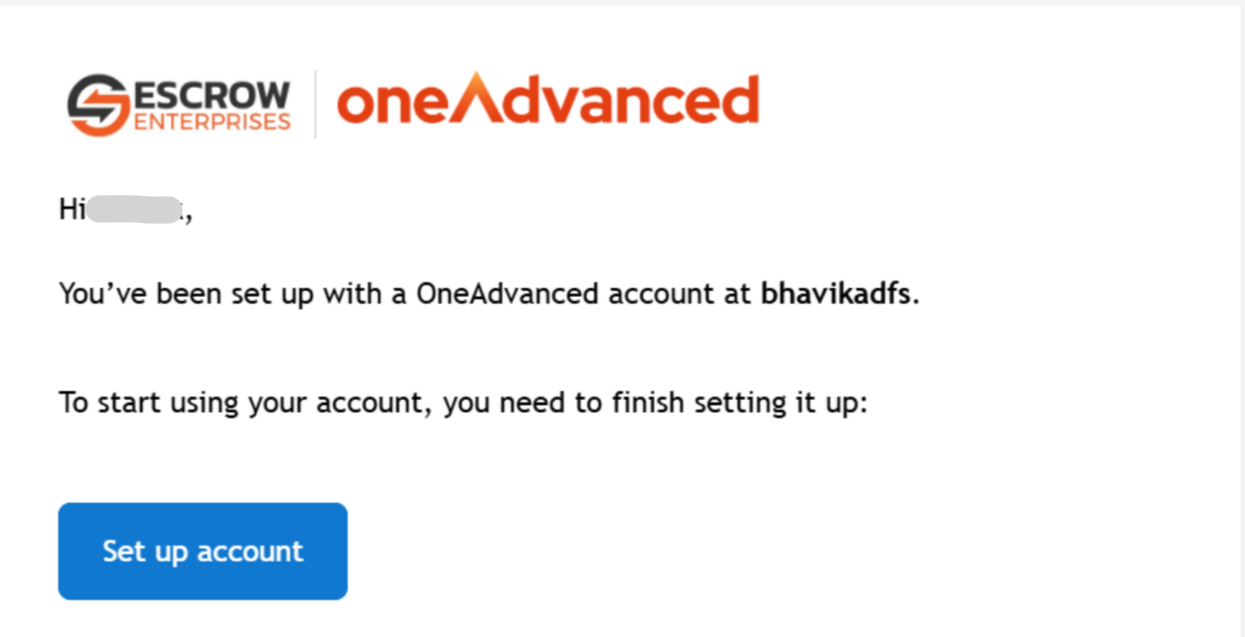
Once configured, the organisation logo is displayed in:
- Post-login experience
- In the Rails menu, beside the OneAdvanced chevron
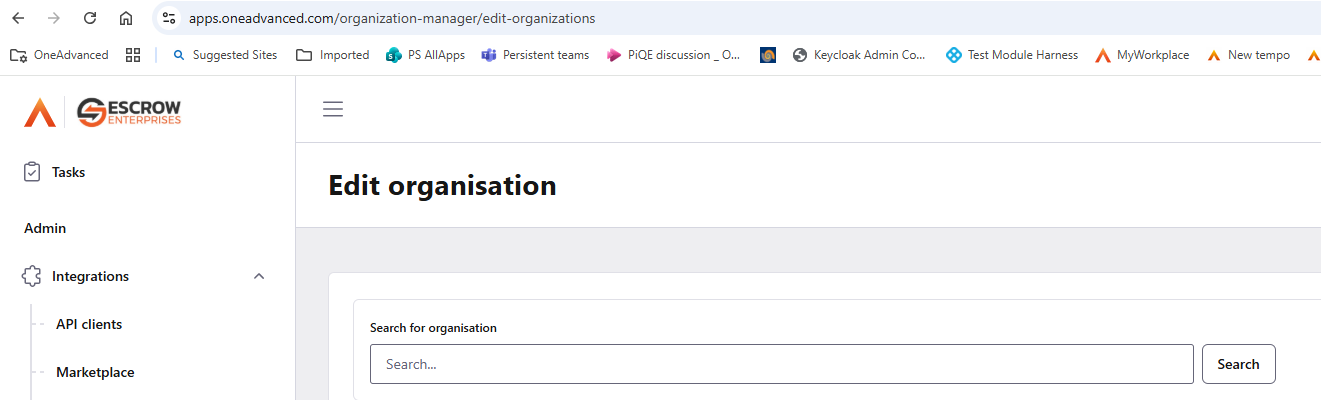
- Welcome email
- Logo is displayed on welcome email when a new user is created.
How to Add or Update an Organisation Logo?
- Step 1: Sign in as Customer Admin
- Step 2: Navigate to Organisation Manager
- Select the required organisation
- Open the Co-branding tab
- Step 3: Upload the Logo
- Upload your organisation logo
- Recommended format: PNG or SVGLogo Requirements
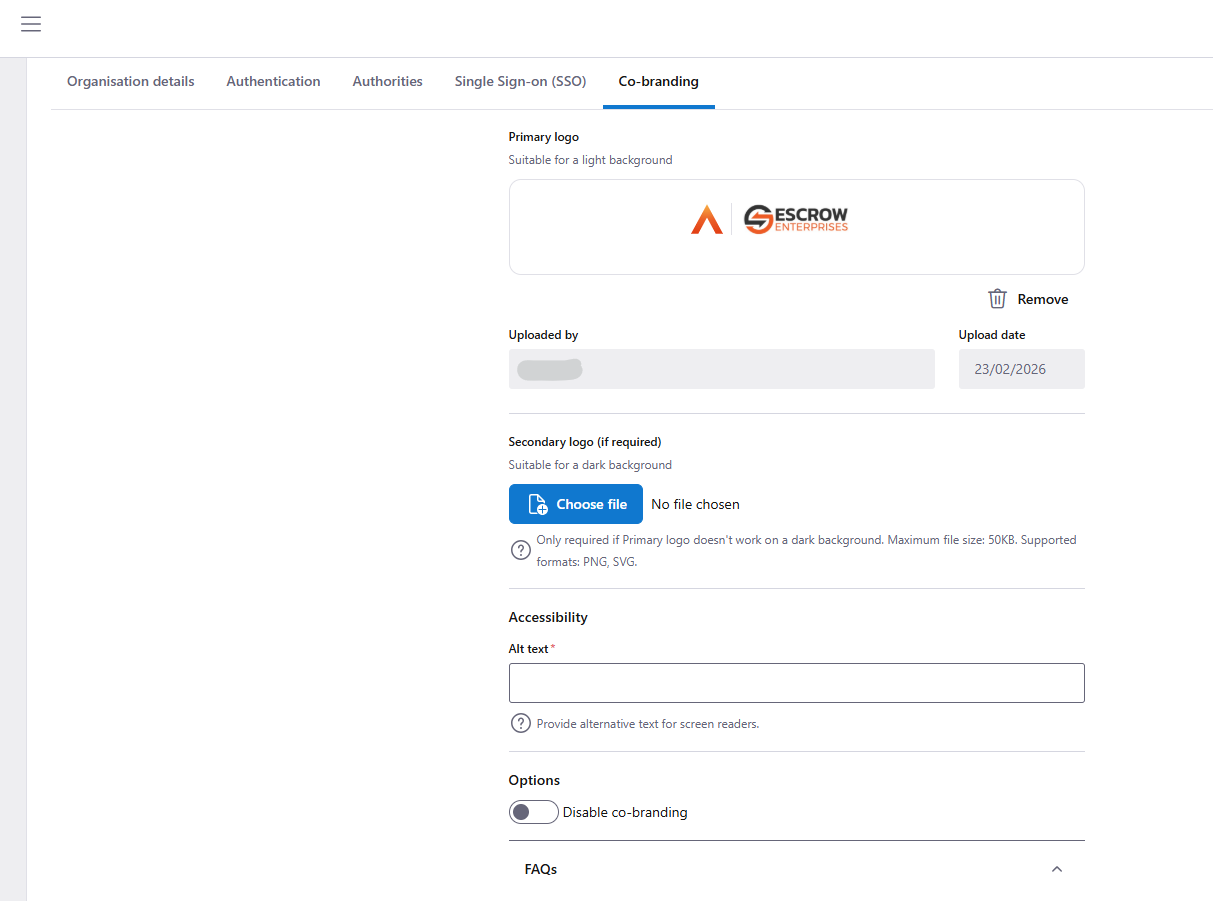
- Maximum file size: 50 KB
- Recommended formats: PNG or SVG
- Primary logo: Used on light backgrounds
- Secondary logo (optional): Used on dark backgrounds if the primary logo is not clearly visible
- Alt text provides a text description of the logo for screen readers, supporting accessibility standards.
- This field is mandatory
- Enter a short, meaningful description of your organisation’s logo
After adding the logo and alt text, the Customer Admin must update the organisation to save the changes.
Disable Co-branding
Hides organisation logos without deleting uploaded logos.